75+ JavaScript Projects for Beginners (Under 100 Lines of Code)
Learning to code becomes so much more engaging when students can see real results instantly. These 75+ mini JavaScript projects are designed exactly for that: each one runs in under 100 lines of code, produces something visually exciting or interactive, and teaches a concrete programming concept. Every project can be completed in a single class period, making them ideal for CS classrooms, coding clubs, and after-school programs.
Whether you're a teacher looking for ready-to-run activities or a student exploring creative coding for the first time, these projects strike the perfect balance between simplicity and visual impact. Students can run, tweak, and remix each one directly in the browser — no setup required.
Tip for teachers: These projects also work brilliantly as type-in exercises. Print a project on paper and hand each student a sheet — no screens needed to get started. For extra fun, make them mystery projects: don't reveal the title, and let students type in the code and discover what it does when they run it. The moment of "oh, it's a firework!" or "wait, it follows my mouse!" never gets old.
Illustrated JavaScript Coding Course
Want to teach JavaScript with a structured, ready-made curriculum? Check out the Illustrated JavaScript Coding Course — a beautifully illustrated, beginner-friendly guide designed for classroom use, with 23 lessons, 700+ slides, and 300+ mini-projects. Available as a PowerPoint edition for teachers and a PDF e-book for students.
Tiny Programs
These minimal programs are great starting points. They introduce loops, coordinates, randomness, and animation in just a handful of lines.
1. Dino
A dinosaur sprite walks back and forth across a pink mountain background. Great for introducing sprites, animation states, and basic movement logic.
2. Flying Plane
A plane sprite flies across a desert background and wraps around when it leaves the screen. A perfect first animation project.
3. Flying Plane 2
A variation on the flying plane using velocity-based movement instead of direct position updates. A nice way to compare two approaches to the same animation.
4. Jungle Run
Control an adventure girl character using the arrow keys — she walks, runs, and idles across a jungle background. Introduces keyboard input and sprite state switching.
5. Mini Draw
The simplest drawing app possible: move your mouse while holding the button to draw lines. A great introduction to mouse input and the loop() function.
6. Mini Draw 2
A more colorful drawing app that changes line weight based on drawing speed and cycles through hues. Introduces HSB color mode and the dist() function.
7. Mini Draw 3
Draw with random colored circles instead of lines. A fun variation that makes every stroke look like confetti.
8. Random Circles
One of the simplest animation loops possible: every frame, draw a randomly colored circle at a random position. Pure, mesmerizing chaos.
9. Random Lines
Colorful lines connecting random points, drawn on a black background. Great for teaching coordinate systems and the line() function.
10. Random Lines from Center
All lines radiate outward from the center of the canvas to a random point. This constraint creates a starburst-like pattern and introduces the concept of a fixed anchor point.
11. Radar Scanner
A rotating green arc sweeps across the screen like a radar display. Introduces arcs, angles, and continuous rotation.
12. Lightning
Jagged lightning bolts flash across a midnight blue sky on every frame. A beautiful way to learn about random offsets and recursive-looking geometry.
13. Dancing Squares
Colorful squares jump to random positions every few frames. Low frame rate + randomness = instant visual interest.
14. Colorful Grid
A grid of cells flickers through random colors every few frames. Teaches nested loops and grid-based layouts.
15. Bricks
A brick wall pattern drawn entirely with math — no images needed. A great lesson in how loops and offsets can produce real-world patterns.
Mouse Interactions
These projects respond to mouse movement and clicks, making them feel alive. They're ideal for teaching event handling and particle systems.
16. Bubbles Burst on Mouse Click
Click anywhere to create a bubble. Bubbles grow over time and then disappear. Introduces mouse click events and simple object lifecycles.
17. Explosion on Mouse Click
Click to trigger a particle explosion at the cursor position. Each particle flies outward at a random angle. A classic intro to particle systems.
18. Eyes Follow Mouse
Two cartoon eyes track the mouse cursor across the screen. A fun lesson in trigonometry — atan2() makes the pupils follow your pointer.
19. Fire on Mouse
Move the mouse to paint fire. Particles drift upward and fade out, creating a convincing flame effect. Great for understanding alpha transparency and particle aging.
20. Mouse Follower
A circle smoothly chases the mouse using linear interpolation (lerp). This is one of the most useful techniques in animation — students use it constantly in games.
21. Mouse Starburst
Lines radiate outward from the cursor position in all directions, creating a starburst wherever you move the mouse. Introduces cos() and sin() for circular geometry.
22. Mouse Trail
The mouse leaves a glowing green trail of dots that fades out as you move. Introduces arrays as queues and the concept of a trail buffer.
23. Ripples on Mouse Click
Click the canvas to create expanding ripple rings that fade out. A satisfying effect that teaches how to animate properties over time.
24. Fading Circles
Circles appear at the mouse position and slowly fade away. Similar to ripples but with filled shapes — introduces alpha fading and array cleanup.
25. Shooting Dots from Mouse
Dots continuously shoot outward in random directions from the mouse cursor. Move the mouse to spray dots everywhere like a paint gun.
26. Confetti
Click anywhere to spray a burst of colorful confetti squares that fall with gravity. Teaches particle systems and simulated physics.
27. Fireworks
Click to launch a firework that explodes into colorful sparks. A crowd-pleasing project that combines mouse events, particles, and gravity.
Bouncing Things
Physics simulations that bounce objects around the canvas. These teach velocity, collision detection, and how to update position with speed vectors.
28. Bouncing Ball
A ball falls under gravity and bounces off the floor, losing a little energy each time. The classic physics simulation — a must-do for beginners.
29. Bouncing Happy Face
A smiley face bounces around the canvas, reflecting off all four walls. Introduces 2D velocity vectors and wall collision detection.
30. Bouncing Pool Balls
Numbered pool balls bounce around a green felt table. A great exercise in managing multiple objects with the same behavior using arrays.
31. Bouncing Squares
Colorful squares bounce around the canvas independently. A clean example of updating an array of objects on every frame.
32. DVD Logo
The classic DVD screensaver: a colored rectangle bounces around the screen and changes color every time it hits a wall. Students instantly recognize it and love building it.
33. Wormhole 1
A colorful circle bounces around the canvas, drawing a trail that creates mesmerizing wormhole-like patterns. Introduces the idea of drawing without clearing each frame.
34. Wormhole 2
A variation on the wormhole effect with a different movement pattern, producing a distinct spiral tunnel aesthetic.
35. Lava Lamp Blobs
Circular blobs drift up and down on a light blue background like a classic lava lamp. A gentle, calming animation that teaches simple vertical oscillation.
36. Lava Lamp Color
A more abstract lava lamp using a scaled grid and HSB color cycling. Introduces color mode switching and the visual power of small-scale grids.
37. Bouncing Emojis
Emoji characters bounce around the canvas like pool balls. The same physics as bouncing squares, but with a fun emoji twist.
38. Bouncing Ground Emojis
Emojis fall from the top with gravity and bounce off the ground. A more realistic physics simulation than simple wall bouncing.
Stars and Rain
Falling particles and scrolling fields — the building blocks of weather effects and space scenes.
39. Starfield
Hundreds of stars scroll from right to left at different speeds, simulating the parallax effect of flying through space. A beautiful introduction to depth simulation.
40. Hyperspace
Stars stream outward from the center of the canvas, giving the impression of jumping to hyperspace. Introduces radial movement and speed scaling.
41. Snow
Simple white dots drift downward across a winter night background. One of the first weather simulations students learn to build.
42. Snowflakes
Snowflake emoji characters fall gently from the top of the screen. The same concept as snow, but immediately more festive.
43. Emoji Rain
A colorful mix of emojis rains down from the sky. Students love customizing the emoji list to rain down their favorites.
44. Matrix Rain
Green characters cascade down the screen in columns like the iconic Matrix movie effect. A cult classic that teaches column-based animation.
45. Balloons
Colorful balloons float upward from the bottom of the screen on a summer background. A cheerful animation that teaches upward scrolling and wrapping.
46. Rain
Diagonal rain streaks fall across a summer sky. Teaches angle-based movement and how to reset particles when they leave the canvas.
Pixel Art
These projects use grids of small squares to draw images and sprites — a hands-on introduction to how computers represent pictures.
47. Pixel Art Editor
An interactive pixel art canvas: click cells to fill them with color, choose from a palette, and erase. A mini version of classic tools like MS Paint.
48. Falling Spiders
Tiny spider sprites — defined as pixel arrays — fall from the top of the screen. A great example of how pixel art images are stored as data in code.
49. Red Spiders
Red pixel-art spiders crawl across the canvas. Uses a 2D array to define the sprite shape, teaching students how bitmaps work at the data level.
Miscellaneous
A diverse collection of simulations, mathematical art, and creative coding experiments.
50. Analog Clock
A fully functional analog clock drawn with trigonometry — no images, just math. One of the most satisfying projects for students learning sin() and cos().
51. Bubbles Spider
A hundred colorful bubbles connect to their nearest neighbors with thin lines, creating a web-like network. A beautiful introduction to proximity-based drawing.
52. Coloring Book
A simple coloring book app: choose a color from the palette and click regions of a drawing to fill them in. Teaches click events and color state.
53. Fractal Tree
A recursive tree grows upward from the bottom of the screen, branching into smaller and smaller limbs. A hands-on introduction to recursion and self-similar structures.
54. Magnetic Needles
A grid of needles all point toward the mouse cursor, as if magnetized. Teaches atan2() and how to compute angles between two points.
55. Maze
A randomized maze is generated and drawn on the canvas using a simple grid. A satisfying project that teaches 2D arrays and conditional rendering.
56. Poetry Generator
Random poems are assembled from lists of articles, adjectives, nouns, and verbs. A light-hearted way to explore arrays, string concatenation, and random selection.
57. Random Line Walk
A line takes a random walk across the canvas, moving a few pixels in a random direction each frame. Introduces the concept of random walks and emergent patterns.
58. Rotating Needles
Hundreds of small needles scattered across a black background each rotate at their own speed, creating a hypnotic field of motion.
59. Grid of Rotating Arrows
A neat grid of arrows all rotate in sync, pointing in the same direction as the animation plays. Teaches push()/pop() for isolated transformations.
60. Spiral
A dot traces an outward spiral path using trigonometry. A minimal but mesmerizing program that demonstrates how sin() and cos() produce circular paths.
61. Turtle Lines
Colorful geometric patterns drawn with turtle graphics commands. Students explore how simple turning and moving rules create intricate designs.
62. Walkers
Ten colored dots perform random walks simultaneously from the center, painting colorful trails across a black canvas. A multi-agent take on the classic random walk.
63. Scroll Primes
The first 1000 prime numbers scroll vertically up the screen on a decorative background. Combines a classic CS algorithm (Sieve of Eratosthenes) with animated display.
64. Planets
Three colored planets orbit a central sun at different speeds and distances. A simple but rewarding solar system simulation using circular motion.
65. Rotating Hexagons
Hexagons of different sizes and speeds rotate on a decorative background. Teaches push()/pop() transforms and how to spin shapes around their centers.
66. Rough Terrain
A rolling landscape scrolls across the screen using Perlin noise, creating naturally varied hills and valleys. A great introduction to procedural generation.
67. Waves
A sine wave animates across a black canvas, its phase shifting on every frame. The most direct visual demonstration of how sine waves work.
68. Wavy Scrolling Text
A message scrolls across the canvas while each letter bobs up and down on its own sine wave, creating a playful wavy text effect.
Games
These are fully playable mini games — each under 100 lines. They're perfect capstone projects for students who've worked through the earlier programs, combining everything from input handling to collision detection.
69. Car Race
Race your car to the finish line before the computer-controlled opponents. A simple turn-based racing game that teaches game state and win conditions.
70. Car Race with Emojis
The same car race game, but using car emojis instead of sprites. A fun customization that shows students how easy it is to reskin a game.
71. Emoji Jump
A side-scrolling endless runner where an emoji character jumps over obstacles. Press any key to jump. Teaches gravity, jumping physics, and scrolling obstacles.
72. Falling Emoji Catcher
A falling emoji drops from the sky and you must catch it with a basket controlled by the mouse. Miss too many and the game ends. Speed increases over time.
73. Guess the Number
The computer picks a secret number between 0 and 100 and the player tries to guess it, receiving "too high" or "too low" hints. The most classic beginner game of all time.
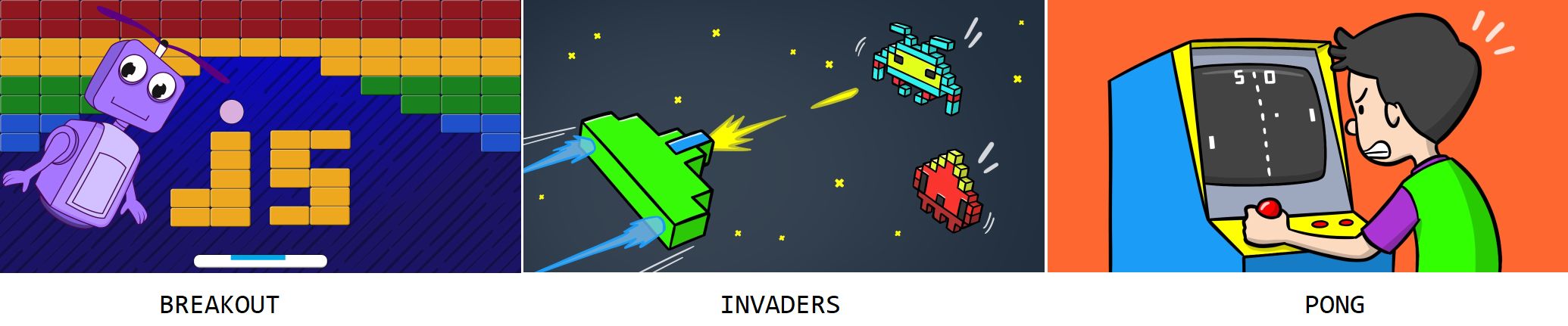
74. Mini Brick Breaker
A compact brick breaker game with a paddle, ball, and rows of bricks to destroy. A miniaturized version of the arcade classic that covers collision detection and game loops.
75. Pong
The original arcade game: a ball bounces back and forth and the player controls a paddle at the bottom. Teaches ball-paddle collision and score tracking.
76. Pop the Balloons
Balloons rise from the bottom of the screen and you must click them before they escape. Miss too many and the game ends. A satisfying click-based game.
Start Coding Today
All projects listed in this article are also available in a dedicated playground that lets you browse the full collection and run each program in a bigger, more imersive coding playground.
These mini programs are especially well-suited for:
- CS classrooms looking for self-contained one-period activities
- Coding clubs that want a library of ready-to-run projects at different difficulty levels
- After-school programs where students can pick projects that match their interests
- Self-directed learners who want to see immediate, visual results from the very first line of code
The best way to learn JavaScript is to build things. Pick a project that looks fun, run it, change something, and see what happens. That curiosity is where real coding skill begins.
Read more blog articles Browse JavaScript projectsAbout codeguppy
CodeGuppy is a FREE coding platform for schools and independent learners. If you don't have yet an account with codeguppy.com, you can start by visiting the registration page and sign-up for a free account. Registered users can access tons of fun projects!
Follow @codeguppy on Twitter for coding tips and news about codeguppy platform. For more information, please feel free to contact us.